Company Management
Add Company
Steps:
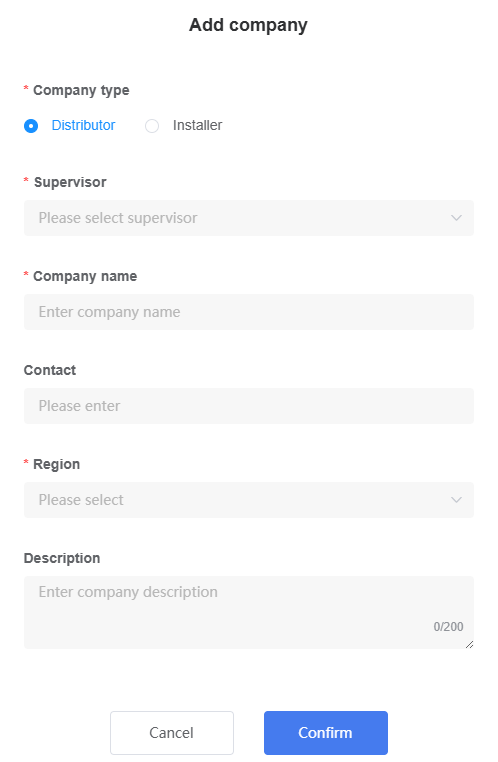
Click "Add Company" to open the Add Company page.
Fill in the Company details according to the table below:
| Setting | Instructions |
|---|---|
| Company Type | Select Distributor or Installer. |
| Parent Company | Select the upper level service provider (Distributor or Installer). |
| Company Name | Enter the company name. |
| Contact Information | Optional. Enter contact information. |
| Region | Select the geographic region where the company is located. |
| Description | Optional. Enter supplementary notes or remarks about the company. |
- Click "Confirm". After successful creation, the newly added Company appears immediately in the list.
Edit Company
Steps:
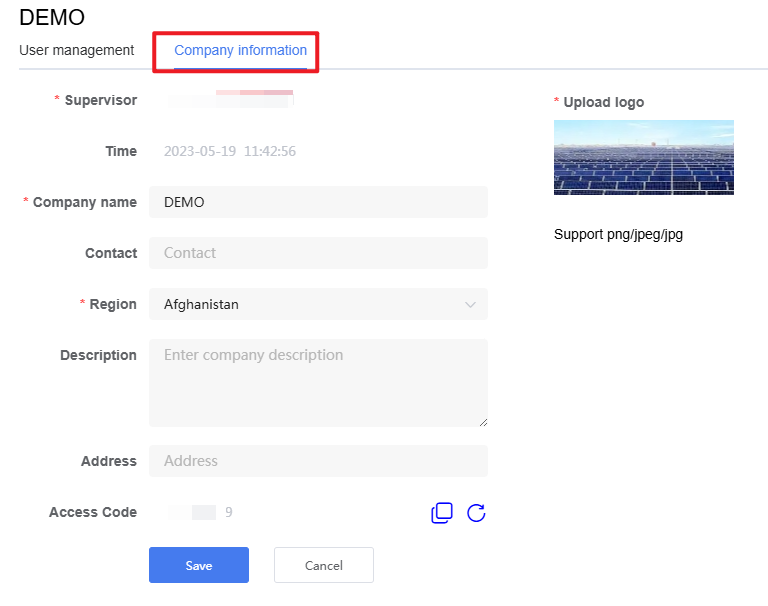
In the list, click the name of the Company you wish to modify.
Click the "Company Information" tab and update any of the following settings as needed:
Company Name
Contact Information
Region
Description
Address
Logo
Authorization Code: Read-only. This authorization code is used by subordinate Installers/Distributors/Owners during registration.
Click "Save" to apply the changes.
Delete Company
NOTE
Only the Common Manager has the permission to delete a Company.
Steps:
In the list, select the Company you wish to remove.
Click "Delete Company" to complete the deletion.